IPTV player for Apple TV
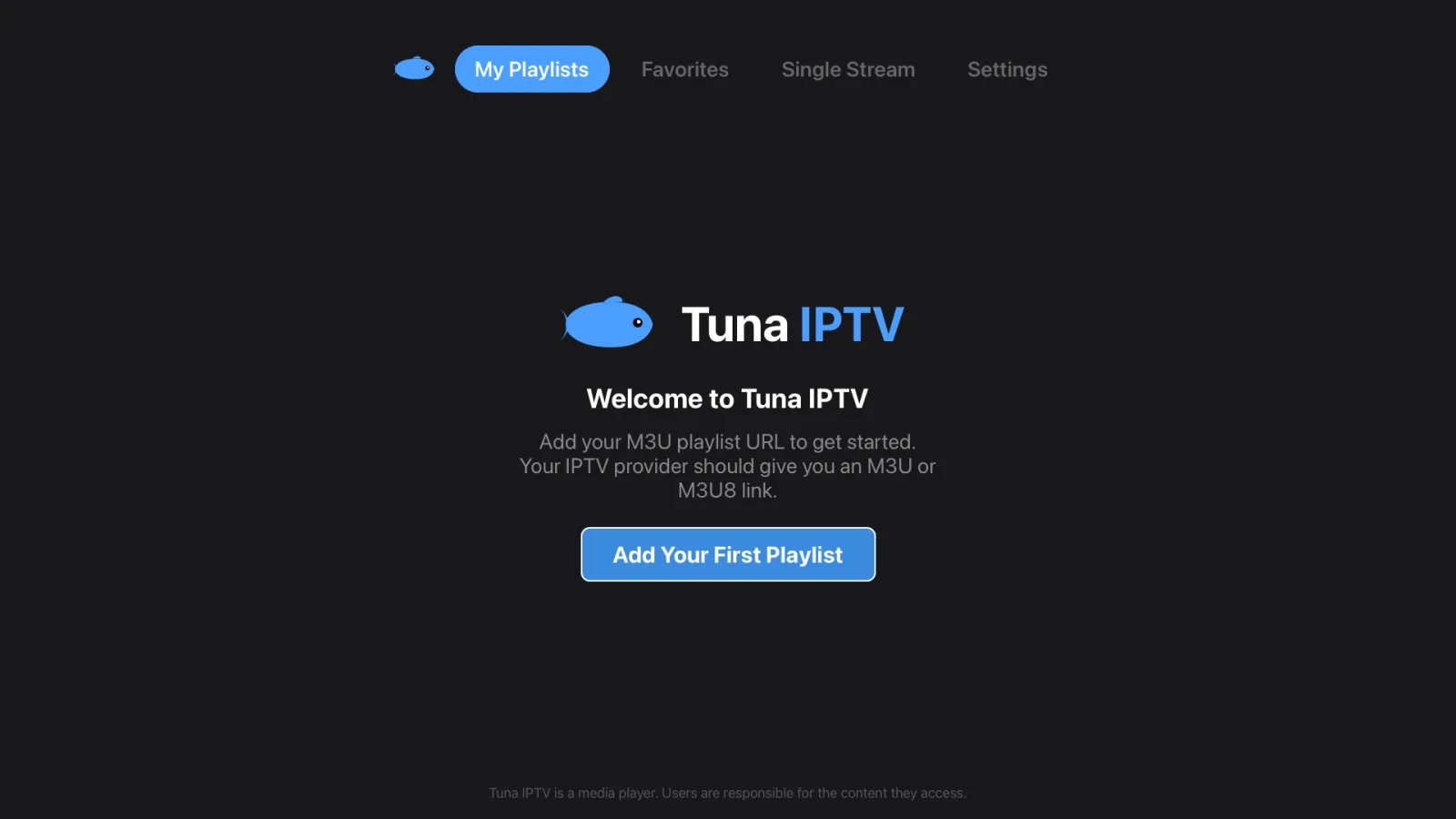
Tuna IPTV turns your Apple TV into a proper living-room IPTV player. Add the playlist from your provider, and your channels appear in a dark, focus-friendly interface designed to be read from the sofa and driven with the Siri Remote.
Tuna does not include any channels. It is a player: you bring the M3U, M3U8 or Xtream Codes playlist from your own IPTV provider, and Tuna plays it. We have no relationship with any provider and we do not host, index or supply streams.
Built for the remote, not a mouse
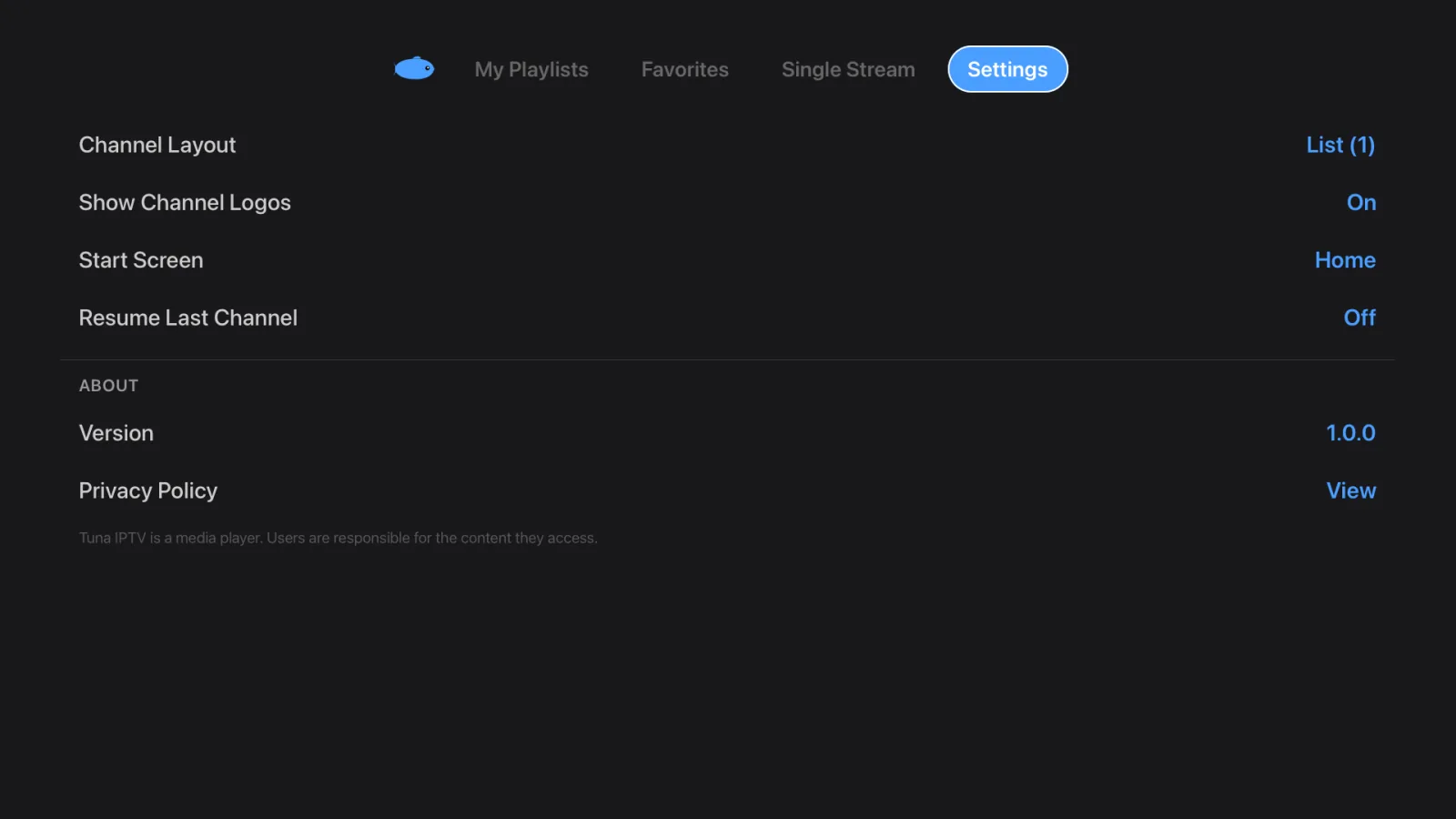
Every control is sized for a ten-foot view, and focus states are always obvious so you never lose your place on screen. In Settings you decide how the app behaves:
- •Channel layout — a list, or a grid from two up to five channels across.
- •Channel logos — show them or turn them off for a denser list.
- •Start screen — choose which tab Tuna opens on.
- •Resume last channel — go straight back into what you were watching.
- •Appearance — follow the system, or force light or dark.
Everything in the app
Browse by category
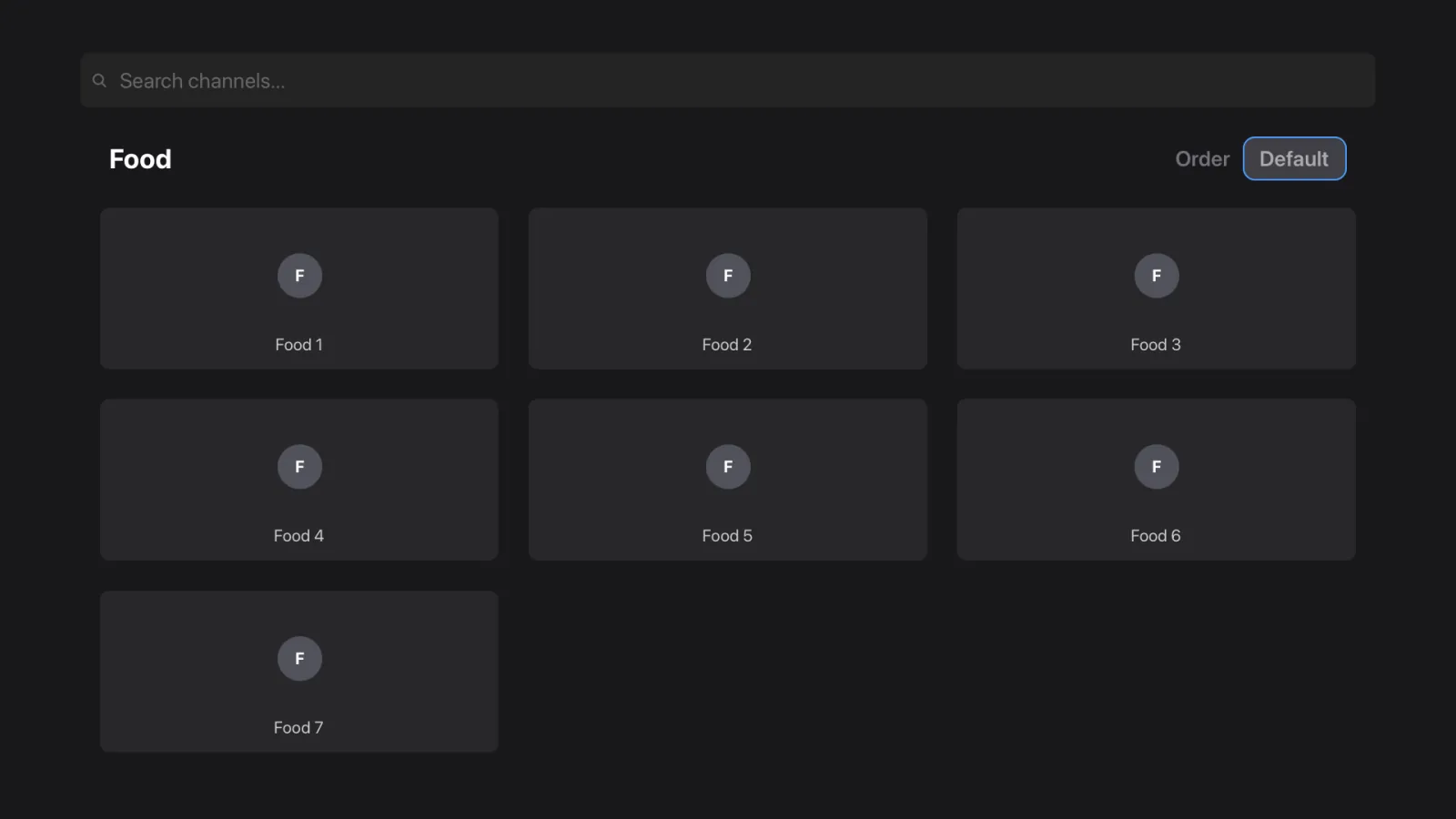
Channels are grouped the way your playlist provides them, with a grid of categories to move through.
Search everywhere
Search across the whole playlist or inside one category. Recent searches are kept so you can repeat them.
Favorites and recents
Mark the channels you actually watch and they float to the top. Recents are always one step away.
Multiple playlists
Add as many M3U or Xtream Codes playlists as you like, refresh them on demand, or remove one you no longer use.
Tidy up the list
Hide or rename categories, merge duplicate channels, and remove entries you will never watch.
Sorting that sticks
Sort alphabetically, by most recently watched, or keep the original order from your playlist.
Single Stream
Paste one direct stream URL and play it immediately, without creating a playlist.
XMLTV EPG
Connect an XMLTV EPG source to see what is on now and what is coming up on each channel.
Light and dark themes
Follow the system appearance, or pin the app to light or dark yourself.
Continue watching
A row of what you had on recently, so you can carry on without hunting for it.
Hide what you never watch
Hidden channels stay out of the way and can be restored at any time.
Duplicate scanner
Find channels your playlist lists more than once and clean them up in one pass.
Resume playback
Tuna offers what you were last watching when you open it, and can jump straight back into your last channel on launch.
Full guide grid
Open a scrollable timetable of the next six hours and take in the whole evening at a glance.
Getting started
- Install Tuna IPTV from the App Store on your Apple TV.
- Open My Playlists and choose Add Your First Playlist.
- Paste your M3U URL, or switch the source to Xtream Codes and enter your server, username and password.
Step by step: add an M3U playlist, sign in with Xtream Codes or add a programme guide.
Compatibility
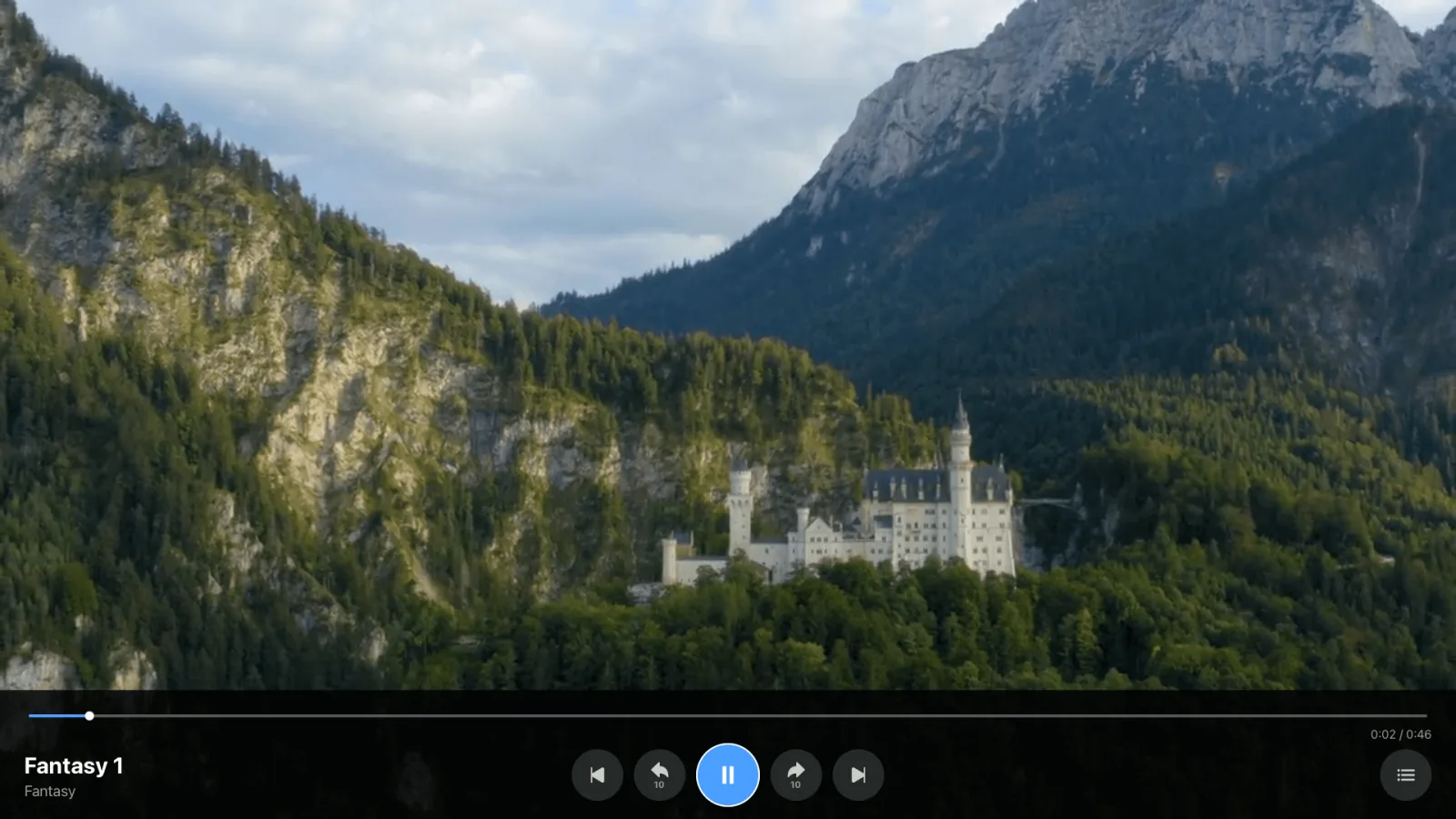
Tuna IPTV requires tvOS 15.1 or later. The same purchase-free app also runs on iPhone, iPad, Mac with Apple silicon and Apple Vision, and on Android TV.
Questions before you install? The FAQ covers formats, legality and where your data is stored.
Get Tuna IPTV on Apple TV
Free, with every feature included. Bring your own playlist.